iPad Pro vs MacBook Air vs Surface Pro: Student's Ultimate Device Showdown (Battery + Performance)
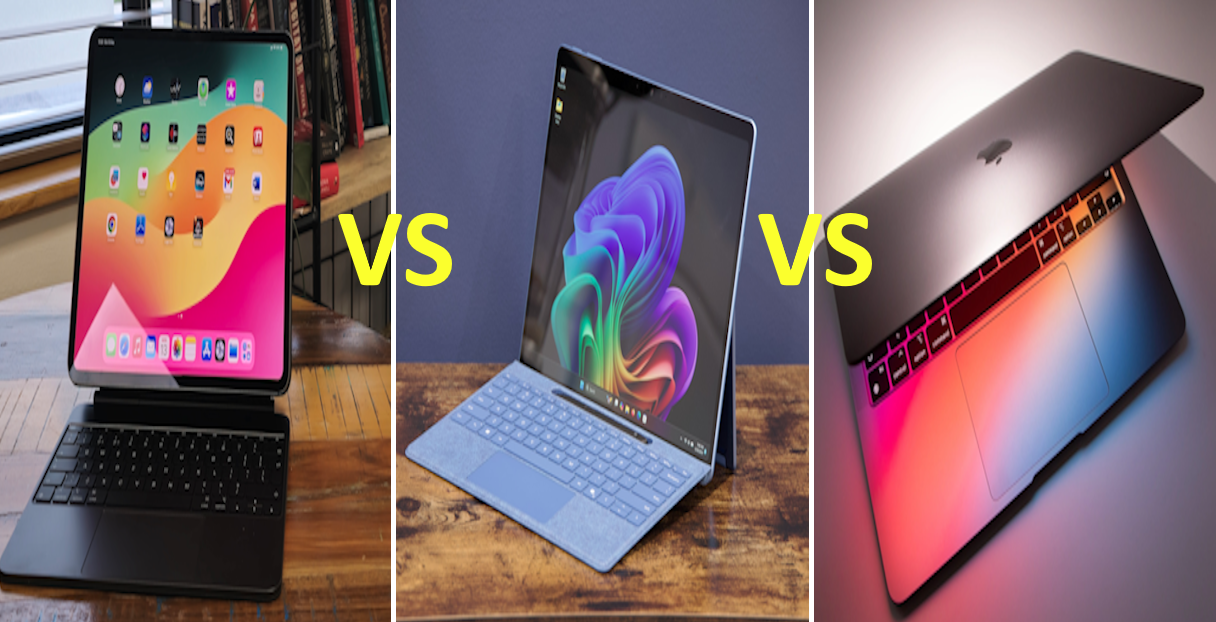
Table of Contents
- Introduction: The $3,000 Student Dilemma
- Design and Build Quality: First Impressions Matter
- Display Technology: Where You’ll Spend 8+ Hours Daily
- Performance Reality: Beyond Benchmark Numbers
- Battery Life: The Truth About All-Day Classes
- Software Ecosystem: Where Limitations Appear
- Input Methods: Keyboard, Trackpad, and Pen
- Storage, Connectivity, and Accessories
- Real Student Use Cases: Which Device Fits Your Major
- Total Cost of Ownership: The Hidden Expenses
- Conclusion: Making Your Decision
- Detailed FAQ
Introduction: The $3,000 Student Dilemma
Sarah’s hands trembled slightly as she stared at three devices arranged across the Apple Store display table, her college acceptance letter folded in her jacket pocket and her parents’ credit card weighing heavily in her wallet. The sleek iPad Pro M5 caught afternoon light through the store windows, its impossibly thin profile and stunning OLED display making the adjacent MacBook Air M3 look almost pedestrian by comparison, while the Microsoft Surface Pro 11 sat somewhat awkwardly to the side, representing the Windows alternative her computer science advisor had mentioned during orientation. With classes starting in three weeks and her entire academic future potentially shaped by this single purchasing decision, she felt the crushing weight of choosing incorrectly, of spending $1,500 or more on a device that might prove inadequate six months into her engineering program when MATLAB assignments required computational power or when her literature professor demanded proper citation management that only desktop software could handle.
This scenario plays out in electronics stores and family living rooms hundreds of thousands of times each year as incoming college students face the increasingly complex decision of selecting their primary computing device for the next four years of academic life. The landscape has shifted dramatically from the simple laptop-or-desktop choice of previous generations, with tablets now offering laptop-class performance through Apple’s M-series chips, traditional laptops becoming thinner and more portable than ever, and hybrid devices like Microsoft’s Surface Pro attempting to bridge both worlds with convertible designs and included pen input. Each manufacturer promotes their devices with carefully curated marketing showcasing students effortlessly completing assignments, attending video lectures, and collaborating with classmates, but the reality of extended daily use under academic pressure reveals crucial differences in capability, comfort, and compatibility that glossy advertisements carefully avoid mentioning.
While this video focuses on comparing the Microsoft Surface Pro and iPad Pro in terms of student performance, this article still includes detailed information about all the comparisons, information you may not yet know:
The financial stakes compound the complexity of this decision, with base configurations representing just the starting point of total expenditure. An iPad Pro M5 beginning at $999 requires adding the $299 Magic Keyboard for laptop-style productivity and the $129 Apple Pencil Pro for handwritten notes, pushing the realistic minimum investment to $1,427 before considering storage upgrades or protection plans. The MacBook Air M3 starts at $1,099 with keyboard and trackpad included, though students working with large files or extensive software installations quickly discover that the 256GB base storage proves insufficient, making the $1,299 512GB configuration the practical entry point. Microsoft’s Surface Pro 11 positions itself at $1,199 with the Surface Pen included but charges $279.99 for the Type Cover keyboard, bringing total costs to $1,479 for a complete laptop replacement setup. These figures represent substantial financial commitments for students or families already facing tuition, housing, textbooks, and living expenses, making the wrong choice potentially devastating for tight budgets with no room for expensive do-overs.
Understanding real-world performance under academic workloads requires looking beyond manufacturer specifications and synthetic benchmarks to examine actual student experiences across diverse use cases. Battery life claims of “all-day” computing dissolve when tested against back-to-back classes spanning 8am to 6pm with video streaming, note-taking, research, and video calls draining batteries faster than marketing materials suggest. Software compatibility issues emerge when professors assign work requiring Windows-specific applications or desktop-class browsers with extension support that mobile operating systems cannot provide. The seemingly minor difference between typing on an integrated laptop keyboard versus an accessory keyboard attached to a tablet accumulates into genuine physical discomfort during extended writing sessions producing term papers that stretch thousands of words across multiple drafts.
Federal guidelines on energy-efficient computers and electronics emphasize the importance of understanding actual power consumption versus advertised specifications, with ENERGY STAR-labeled devices using 30-65% less energy than non-certified alternatives depending on usage patterns. This consideration extends beyond environmental concerns to practical implications for students spending hours in libraries or coffee shops where power outlet access remains inconsistent, making devices with superior energy efficiency genuinely more valuable for mobile academic work than those requiring frequent charging stops that disrupt study flow.
The rapid evolution of silicon technology further complicates purchasing decisions, with Apple’s M5 chip released in late 2025 joining the already-available M3 MacBook Air and Intel’s latest processors powering the Surface Pro 11, creating a landscape where comparing raw performance numbers proves challenging without understanding how different architectures handle specific workload types. Students pursuing creative majors benefit enormously from the GPU capabilities and media engines in Apple Silicon, while computer science students working with x86-specific development tools may find Windows machines offering better compatibility despite potentially lower benchmark scores. These nuanced considerations rarely appear in comparison charts or store employee recommendations, leaving buyers to discover compatibility issues only after purchases become final and return windows close.

This comprehensive analysis examines the iPad Pro M5, MacBook Air M3, and Surface Pro 11 through the specific lens of student use cases, testing battery life under realistic academic workloads, evaluating software compatibility with common educational platforms and applications, assessing ergonomic factors for extended typing and viewing sessions, and calculating true total cost of ownership including necessary accessories and extended warranty protection. Rather than declaring a single “best” device, this guide helps prospective student buyers understand which device aligns with their specific major requirements, budget constraints, workflow preferences, and tolerance for potential limitations that each platform presents in different scenarios.
The goal is empowering informed decision-making based on realistic expectations rather than marketing promises, helping students avoid the disappointment of discovering six months into their academic program that their chosen device cannot run required software, lacks battery life for full school days, or proves physically uncomfortable for extended use during late-night study sessions and marathon paper-writing weekends. With proper understanding of each platform’s genuine strengths and honest limitations, students can select the device that will serve as their reliable academic companion throughout their college journey rather than becoming a source of frustration and regret.
Design and Build Quality: First Impressions Matter
The moment you first hold each device reveals fundamental design philosophies that influence daily experience more profoundly than any specification sheet suggests. Apple’s iPad Pro M5 represents the pinnacle of industrial design minimalism, measuring just 5.1mm thick in the 13-inch variant with weight distributed across its aluminum chassis in ways that make the device feel simultaneously substantial and impossibly light. The Space Black finish resists fingerprints better than previous silver aluminum models, while the flat edges and uniform thickness create a geometric purity that Apple’s design team obsesses over but that translates into genuine aesthetic pleasure during use. The OLED display’s edge-to-edge design eliminates bezels to near-invisibility, making the screen feel like a floating window into digital content rather than a display mounted in a frame, an effect that proves genuinely impressive during first interactions but whose practical value diminishes once academic work begins demanding functional considerations over aesthetic ones.
Transitioning from the iPad Pro to the MacBook Air M3 feels like moving from art object to tool, with Apple’s laptop prioritizing function while maintaining the company’s signature attention to materials and manufacturing quality. The wedge-shaped aluminum unibody tapers from 1.61cm at the hinge to 0.41cm at the front edge, creating visual lightness while providing structural rigidity that prevents the flex and creaking common in plastic-bodied competitors. The slightly thicker profile compared to iPad Pro accommodates a full-size keyboard with proper key travel and a large trackpad with haptic feedback, compromises that sacrifice ultimate thinness for genuine usability improvements during extended work sessions. The Midnight aluminum finish looks stunning in photos but attracts fingerprints and micro-scratches with frustrating enthusiasm, making the Starlight or Space Gray options more practical for students whose devices will spend years being pulled in and out of backpacks.
Microsoft’s Surface Pro 11 takes an entirely different approach, using magnesium alloy for the main body and integrating a kickstand into the rear panel with a complex hinge mechanism allowing continuous angle adjustment from nearly flat to 165 degrees. This design enables the versatility Microsoft markets heavily, allowing the Surface Pro to function as a tablet for reading, a note-taking device with pen input, or a laptop when paired with the Type Cover keyboard, but the physical compromises become apparent during actual use. The device measures 8.7mm thick, substantially chunkier than iPad Pro’s 5.1mm, with weight concentrated in the main tablet rather than distributed between base and lid as in traditional laptop designs. Setting the Surface Pro on your lap requires either finding a flat surface for the kickstand or accepting that the device will topple forward without careful weight distribution, a limitation that makes true “laptop” use in cramped lecture halls or on buses genuinely challenging compared to traditional clamshell designs.
Build quality across all three devices meets high standards befitting their premium pricing, with no creaking, flexing, or cheap-feeling materials present in any model. The iPad Pro’s aluminum construction provides excellent rigidity with no screen flex when applying pressure to corners or twisting the chassis, critical for maintaining display integrity during years of daily transport in backpacks alongside heavy textbooks. The MacBook Air’s unibody aluminum design has proven durable across multiple generations, with five-year-old models still functioning flawlessly for many users despite countless opening and closing cycles, drops onto carpet, and general student abuse. The Surface Pro’s magnesium construction similarly provides reassuring solidity, though the kickstand hinge represents a potential long-term wear point that traditional laptops avoid entirely through fixed-angle lid designs.
Port selection reveals each manufacturer’s philosophy regarding connectivity and the transition to wireless peripherals. The iPad Pro provides a single Thunderbolt/USB 4 port on the bottom edge for charging and data transfer, requiring dongles or hubs for connecting external displays, storage drives, or legacy peripherals. This minimalism aligns with Apple’s vision of wireless-first computing where AirPods handle audio, AirDrop manages file transfers, and cloud storage eliminates most need for physical drives, but students working with wired lab equipment, HDMI projectors, or reliable Ethernet connections find themselves carrying dongles and adapters that undermine the device’s elegant simplicity. The MacBook Air similarly provides two Thunderbolt/USB 4 ports plus a MagSafe 3 charging port and headphone jack, offering slightly more flexibility while maintaining Apple’s minimalist aesthetic, though users requiring multiple simultaneous connections still need a USB-C hub.
The Surface Pro 11 distinguishes itself with more traditional connectivity including two USB-C ports, a Surface Connect port for charging and docking, and a microSDXC card reader for expandable storage, providing the most comprehensive built-in connectivity of the three devices. This additional flexibility proves valuable for students in photography, video production, or other majors requiring frequent file transfers from cameras, external storage, or other USB peripherals, eliminating some dongle-dependent workflows that plague Apple devices. However, the absence of USB-A ports still requires adapters for many accessories, and the microSD slot’s slower speeds compared to internal storage make it unsuitable for running applications or editing large video files directly from cards.
Shop on AliExpress via link: wholesale-laptop-tablet-accessories
The weight and dimensions significantly impact daily carrying comfort for students moving between classes multiple times daily. The 13-inch iPad Pro weighs 579 grams (1.28 pounds), incredibly light for a device with such a large display, making it barely noticeable in backpacks alongside textbooks and notebooks. Adding the Magic Keyboard increases total weight to 1,279 grams (2.82 pounds), still lighter than most laptops but transforming the elegant thin tablet into a noticeably heavier package that loses some of the standalone iPad’s portability advantages. The MacBook Air weighs 1,240 grams (2.7 pounds) with everything built-in, representing excellent portability for a complete laptop with keyboard and trackpad included. The Surface Pro 11 weighs 896 grams (1.97 pounds) for the tablet, jumping to 1,276 grams (2.81 pounds) with Type Cover attached, creating a similar total weight to MacBook Air while offering less integrated feel due to the separate keyboard attachment.
Real-world durability testing by students using these devices reveals that all three models withstand normal academic use remarkably well, with proper cases or sleeves protecting against the minor drops and bumps inevitable in daily student life. The iPad Pro’s glass display represents the largest vulnerability, with screen repairs costing $649 without AppleCare+ coverage according to Apple’s published pricing, making a quality screen protector and protective case essential investments. The MacBook Air’s clamshell design protects the display during transport by closing it against the keyboard, inherently providing better impact protection than exposed tablet screens. The Surface Pro similarly requires careful protection for its exposed display, with Microsoft charging $550 for screen replacement without warranty coverage, making protective accessories critical for budget-conscious students unable to absorb unexpected repair costs.
Display Technology: Where You’ll Spend 8+ Hours Daily
Given that students spend anywhere from eight to fifteen hours daily staring at their device’s display during classes, studying, research, content consumption, and social activities, screen quality transcends mere technical specification to become perhaps the single most important factor influencing long-term satisfaction and eye comfort. The iPad Pro M5’s 13-inch Tandem OLED display represents current display technology pinnacle, featuring 2752-by-2064 pixels at 264 pixels per inch, ProMotion variable refresh rate from 10Hz to 120Hz, peak brightness of 1,600 nits for HDR content, and the infinite contrast ratio that OLED technology inherently provides through its ability to completely disable individual pixels for true blacks. Viewing content on this display creates an immediate “wow” reaction, with colors popping vibrantly, text rendering with crystalline sharpness, and dark mode interfaces achieving inky blacks impossible on traditional LCD technology.
The MacBook Air M3’s 13.6-inch Liquid Retina display uses IPS LCD technology with 2560-by-1664 pixel resolution at 224 pixels per inch, substantially lower pixel density than iPad Pro but still exceeding the “Retina” threshold where individual pixels become invisible at normal viewing distances. Peak brightness reaches 500 nits for standard content without the HDR capabilities of the iPad Pro, and contrast ratio measures approximately 1000:1 compared to OLED’s infinite contrast. The display lacks ProMotion, fixed at 60Hz refresh rate that feels noticeably less fluid when scrolling compared to the iPad Pro’s adaptive 120Hz, though most users adapt within days and cease noticing the difference during focused work. The display’s anti-reflective coating reduces glare effectively in bright environments, crucial for students working in sunlit libraries or outdoor spaces, though not matching the iPad Pro’s nano-texture glass option available on higher-end configurations.
Microsoft’s Surface Pro 11 employs a 13-inch PixelSense Flow display with 2880-by-1920 resolution at 267 pixels per inch, matching iPad Pro’s pixel density while using IPS LCD technology similar to MacBook Air. The display supports refresh rates up to 120Hz for smooth scrolling and pen input, positioning it between MacBook Air’s fixed 60Hz and iPad Pro’s adaptive ProMotion. Brightness reaches 450 nits maximum, adequate for most indoor environments but struggling in direct sunlight where iPad Pro’s 1,600-nit HDR capability provides clear advantage. The Surface Pro’s 3:2 aspect ratio provides more vertical space than the iPad Pro’s 4:3 or MacBook Air’s approximately 16:10, fitting more content on screen during document editing or web browsing, a subtle advantage that proves meaningful during extensive research requiring numerous browser tabs and reference materials.
Color accuracy matters for creative students in photography, graphic design, or video production majors, with all three devices covering the DCI-P3 wide color gamut used in professional content creation. The iPad Pro and MacBook Air both provide exceptional color accuracy out of the box with deltaE values below 2, meaning colors match industry standards closely enough for most student creative work without calibration. The Surface Pro similarly delivers accurate colors covering 100% sRGB and approximately 98% DCI-P3, making it suitable for color-sensitive work despite lacking the OLED’s infinite contrast ratio. Students working with specialized AI-powered photo editing apps will find all three displays adequate for learning and student projects, though professionals would typically calibrate any display using hardware colorimeters before critical color-grading work.
The impact of display quality on eye strain and fatigue during extended study sessions deserves serious consideration for students planning multiple-hour reading and writing marathons. OLED displays like iPad Pro’s reduce eye strain in dark environments through their ability to display true black without backlight bleed, making late-night reading and studying more comfortable than LCD screens that illuminate dark areas with diffuse backlighting. However, OLED’s pulse-width modulation for brightness control can trigger sensitivity in some users, causing headaches or eye discomfort that doesn’t occur with LCD displays using DC dimming. The MacBook Air and Surface Pro’s LCD technology avoids PWM-related sensitivity while providing consistent brightness without the flickering that affects PWM-sensitive individuals, making them potentially more comfortable for certain users despite lacking OLED’s contrast advantages.

Blue light emission concerns frequently raised regarding screen time and sleep quality apply to all three devices, with each manufacturer implementing software-based color temperature adjustment that shifts display output toward warmer tones during evening hours. Apple’s Night Shift, Microsoft’s Night Light, and similar features reduce blue light emission that can interfere with circadian rhythms, though the effectiveness of these features remains debated in scientific literature. More important than blue light filtering is simply reducing screen brightness during nighttime use and maintaining reasonable viewing distances, with all three devices supporting ambient light sensors that automatically adjust brightness for comfortable viewing in varying lighting conditions, reducing eye strain by preventing excessively bright displays in dark rooms or dim displays in bright environments.
The utility of touch input varies dramatically across the three platforms, with iPad Pro designed fundamentally as a touch-first device where finger interaction represents the primary input method and keyboard use supplements rather than replaces direct screen manipulation. This touch-centric design proves intuitive for certain tasks like photo organization, presentation creation with drag-and-drop elements, or web browsing, but forces awkward arm-reaching when seated at a desk with the iPad in Magic Keyboard, creating gorilla-arm fatigue during extended use. The MacBook Air completely lacks touch input, requiring users to work exclusively through keyboard and trackpad, a limitation that initially frustrates users accustomed to touch devices but which forces development of trackpad proficiency that proves faster for many productivity tasks once muscle memory develops.
The Surface Pro implements Microsoft’s vision of touch-first Windows computing, providing full touch support throughout the operating system while maintaining complete mouse and keyboard functionality for traditional desktop applications. This flexibility sounds ideal in theory, allowing users to choose the most efficient input method for each task, but in practice most users settle into either predominantly touch-based workflows or keyboard-and-trackpad patterns, rarely switching modes dynamically throughout work sessions. The touch support proves most valuable when using the Surface Pro in tablet mode for reading, marking up PDFs, or consuming media, but during laptop-style work the raised screen position when using the kickstand places the display too far from comfortable touch reach, making trackpad input more natural despite touch remaining available.
Display orientation and aspect ratio influence content consumption and productivity workflows in subtle but meaningful ways. The iPad Pro’s 4:3 aspect ratio (slightly wider actually) provides more square-shaped screen real estate optimal for web browsing and document reading that typically prioritizes vertical space for scrolling through content. The Surface Pro’s 3:2 aspect ratio similarly emphasizes vertical space, fitting more email messages, document text, or web content visible without scrolling compared to widescreen displays. The MacBook Air’s wider approximately 16:10 aspect ratio provides more horizontal space beneficial for video content, side-by-side app comparisons, or split-screen multitasking where two applications share screen space equally. No single aspect ratio proves universally superior, with optimal choice depending on whether users primarily consume widescreen video content, read and edit documents, or work with multiple applications simultaneously in split-screen arrangements.
For students with concerns about device privacy and security, understanding that according to FCC wireless device safety standards, all three devices meet federal guidelines for safe radiofrequency exposure, with specific absorption rates well below regulatory limits ensuring safe operation during typical use patterns including extended study sessions with devices on laps or desks.
Performance Reality: Beyond Benchmark Numbers
Synthetic benchmark scores plastered across technology websites and marketing materials provide seductive simplicity, reducing complex performance characteristics into single numbers that promise easy device comparisons, but real-world student performance depends on specific application workloads, thermal constraints during extended use, and operating system optimization that benchmarks capture poorly. The iPad Pro M5’s Apple Silicon achieves phenomenal benchmark scores with its 10-core CPU and 10-core GPU delivering computational throughput matching or exceeding many laptops costing twice as much, yet this raw performance gets constrained by iPadOS limitations preventing certain professional applications from running regardless of available computing power, creating scenarios where a less powerful MacBook Air completes tasks impossible on the more powerful iPad Pro due solely to software availability differences.
Federal guidelines from NIST on cybersecurity and device security emphasize that beyond raw performance, students should consider platform security features, with all three manufacturers implementing hardware-backed encryption, secure boot processes, and regular security updates protecting against malware and unauthorized access. The importance of these protections increases for students storing sensitive research data, financial information, or personal documents on devices that may be lost, stolen, or accessed in shared computing environments.
The MacBook Air M3’s 8-core CPU and 8-core GPU (10-core GPU on higher configurations) delivers performance that trails iPad Pro M5 in pure benchmark comparisons, yet the complete macOS software ecosystem enables the MacBook Air to accomplish tasks that remain impossible on iPad Pro regardless of benchmark advantages. A computer science student compiling code, running virtual machines, or using advanced development environments finds MacBook Air’s slightly lower benchmark scores completely irrelevant compared to its ability to run full desktop development tools that have no iPad equivalents. Similarly, an engineering student analyzing data in MATLAB or designing circuits in KiCad benefits from macOS’s complete desktop application support rather than iPad Pro’s impressive but ultimately constrained mobile app ecosystem.
Microsoft’s Surface Pro 11 uses either Intel Core Ultra 5 or Core Ultra 7 processors depending on configuration, representing x86 architecture that sacrifices some energy efficiency compared to ARM-based Apple Silicon but provides maximum software compatibility with Windows applications accumulated over decades. The Intel chip delivers competitive performance in single-threaded tasks while trailing Apple Silicon in multi-core workloads and GPU-intensive applications, but the real advantage lies in compatibility with niche academic software, legacy applications, and Windows-specific tools that some courses require without macOS or iOS alternatives available. Students discovering their obscure statistics package or discipline-specific analysis tool only runs on Windows learn quickly that software compatibility trumps benchmark scores for actual academic productivity.
Real-world testing under typical student workloads reveals performance characteristics that synthetic benchmarks miss entirely. Opening fifteen browser tabs for research, streaming a lecture recording in picture-in-picture mode while taking notes in a separate application, running citation management software in the background, and keeping messaging apps active for group project coordination creates the type of sustained mixed workload that students encounter daily but that focused benchmarks never simulate. Under these conditions, all three devices perform adequately for most tasks, though subtle differences emerge in how they handle thermal management and sustained performance.
The iPad Pro M5’s fanless design relies entirely on passive cooling through its aluminum chassis, allowing completely silent operation even under sustained load but imposing thermal limits that cause performance throttling during extended demanding tasks. Video export, 3D rendering, or sustained gaming sessions cause the chassis to become noticeably warm after 10-15 minutes as the chip reduces clock speeds to manage heat dissipation without active cooling. For most student work involving bursts of activity interspersed with reading, typing, and lighter tasks, this thermal throttling rarely matters, but students in video production, 3D animation, or other intensive creative programs encounter performance limitations that wouldn’t exist with active cooling.
The MacBook Air M3 similarly employs fanless passive cooling, accepting the same thermal constraints as iPad Pro in exchange for silent operation and simplified construction without moving parts. The larger chassis compared to iPad Pro provides more thermal mass for heat absorption, allowing slightly longer sustained performance before throttling begins, but extended demanding workloads still cause performance reduction as the aluminum chassis reaches thermal equilibrium with the chip’s heat output. Students prioritizing complete silence find the fanless design appealing, accepting occasional thermal throttling as reasonable tradeoff, while those performing sustained rendering or computational tasks might benefit from MacBook Pro models incorporating active cooling fans allowing unlimited sustained performance.
The Surface Pro 11 includes a small fan for active cooling, providing better sustained performance under load compared to fanless MacBook Air and iPad Pro by exhausting heat through vents on the upper edge. The fan remains silent during light tasks and moderate workloads, only becoming audible during intensive operations like video encoding or gaming. This active cooling allows the Surface Pro to maintain higher sustained clock speeds without throttling, benefiting students with workloads involving extended periods of high CPU or GPU utilization rather than brief bursts of activity. The tradeoff involves slightly more complexity with a moving part that could theoretically fail over years of use, plus occasional fan noise that some users find distracting during quiet study sessions.
Memory configuration proves critical for longevity and multitasking performance, with base models of all three devices shipping with 8GB unified memory that proves adequate for light single-tasking but constrains performance once users open numerous applications simultaneously or work with large files. The iPad Pro and MacBook Air offer 16GB and 24GB memory upgrades at purchase time, non-upgradeable after the fact, making configuration decisions permanent. Students anticipating heavy multitasking, virtual machine use, or large creative files should strongly consider 16GB minimum to avoid memory pressure that causes system slowdowns through constant data swapping to storage. The Surface Pro similarly offers 16GB and 32GB configurations with memory soldered to the motherboard, eliminating future upgrade possibilities and requiring careful initial configuration matching anticipated workload demands.
Storage performance impacts application launch times, file operations, and overall system responsiveness more directly than most users realize. All three devices employ NVMe PCIe solid-state drives delivering excellent random access performance and sequential transfer speeds exceeding 3000 MB/s read speeds, making storage rarely a bottleneck for typical student work. The more critical consideration involves storage capacity, with base 256GB configurations filling quickly once users install applications, store course materials, maintain photo libraries, and cache offline content for mobile study. Students working with video projects, extensive software development tools, or large datasets typically require minimum 512GB storage to avoid constant file management and offloading content to external drives, making storage upgrades among the most important configuration decisions despite adding $200-300 to purchase prices.

Application-specific performance testing reveals interesting patterns across devices. Students using Microsoft Office applications find Word, Excel, and PowerPoint performing similarly across all three platforms, with full-featured desktop versions on MacBook Air and Surface Pro providing identical capabilities while iPad versions offer simplified interfaces and reduced functionality that frustrates users attempting advanced formatting or macro usage. Web-based applications like Google Docs work identically across all devices, demonstrating how cloud-based software erases platform performance differences for many common student tasks. Creative applications like Adobe Photoshop or video editing tools show the clearest performance differentiation, with GPU-accelerated operations completing faster on iPad Pro M5 and MacBook Air M3 compared to Surface Pro’s Intel graphics, though Surface Pro’s Windows versions of creative software often provide more features than iPad equivalents despite slower processing.
For students comparing these devices against top laptop recommendations, understanding real-world performance under academic workloads provides more valuable insight than benchmark numbers that rarely correlate with actual productivity in educational contexts where software availability and ecosystem integration matter more than raw computational throughput.
Battery Life: The Truth About All-Day Classes
Battery life marketing claims saturate product pages with promises of “all-day battery” and vague hour counts based on video playback or web browsing under optimal conditions that bear little resemblance to actual student use patterns involving simultaneous video streaming, note-taking, video calls, and constant notification checking across multiple messaging platforms. Real-world testing under realistic student workloads reveals dramatic differences from advertised specifications, with the type of usage, screen brightness, wireless connectivity patterns, and background application activity all influencing actual endurance in ways that laboratory video playback tests ignore completely.
The MacBook Air M3 demonstrates exceptional battery efficiency thanks to Apple Silicon’s ARM architecture optimized for mobile power consumption, with real-world testing showing 15-18 hours of mixed productivity use including document editing, web browsing, video streaming, and video calls at 50% screen brightness with WiFi enabled. Students attending morning classes from 8am through afternoon study sessions ending at 6pm typically finish the day with 20-30% battery remaining, eliminating charging anxiety and allowing extended library sessions without hunting for outlet-adjacent seating. This stellar battery life stems from the M3 chip’s efficient 3nm manufacturing process, aggressive power gating shutting down unused chip components, and macOS’s sophisticated power management that aggressively throttles background processes when running on battery. The 52.6 watt-hour battery capacity provides sufficient energy reserve for genuinely all-day untethered operation under normal student workloads.
According to research from the Department of Energy on next-generation battery technology, lithium-ion batteries used in laptops and tablets degrade gradually with charge cycles, losing approximately 20% capacity after 500-1000 full charge cycles depending on usage patterns and charging habits. Students should expect battery life declining noticeably after two to three years of daily charging, with all three devices experiencing similar degradation patterns as their batteries approach end-of-life. Optimizing charging patterns by avoiding constant 100% charges and preventing deep discharges below 20% helps maximize long-term battery health across all platforms.
The iPad Pro M5 delivers more variable battery performance depending heavily on workload type, with light tasks like reading or note-taking lasting the advertised 10 hours while more intensive use involving video editing, intensive multitasking, or sustained gaming draining the battery considerably faster. Testing under typical student mixed workloads shows 8-12 hours of practical battery life, adequate for most school days but requiring midday charging during particularly intensive use days involving extensive video streaming or creative work. The 31.29 watt-hour battery provides less total energy capacity than MacBook Air’s 52.6 watt-hours, offset partially by the iPad’s more aggressive power management when running mobile apps rather than full desktop software, but the thinner chassis limits battery size more than Apple would prefer, forcing compromises between thinness and endurance.
Students comparing the iPad Pro against other portable computing devices and power banks should consider that charging speed and accessibility influences practical usability as much as total battery capacity, with USB-C Power Delivery allowing rapid charging that restores 50% battery in under an hour when needed.
The Surface Pro 11 occupies middle ground with battery life testing revealing 10-13 hours under mixed student workloads, better than iPad Pro but trailing MacBook Air’s exceptional endurance. The 48.8 watt-hour battery provides good capacity, but Windows’ traditionally higher idle power consumption compared to macOS costs some efficiency, particularly when background processes and Windows Update activities consume power without user awareness. The advantage of Surface Pro’s x86 architecture and Windows software compatibility comes with inherent power efficiency penalties compared to Apple’s ARM-based chips, though Intel’s recent generations have made significant improvements closing the gap versus previous Core processors. Students can reasonably expect full-day battery life for typical classes and study sessions, though power-intensive work like video encoding or gaming drains the battery noticeably faster requiring afternoon top-up charges.
Charging infrastructure and cable availability impact practical mobility, with all three devices using USB-C for charging but requiring different wattages for optimal charging speeds. The MacBook Air ships with a 30W power adapter adequate for charging but limiting fast-charge speeds, with Apple’s optional 67W or higher adapters enabling significantly faster charging though at additional cost. The iPad Pro includes a 20W adapter sufficient for overnight charging but slow for quick top-ups, with users benefiting from 30W or higher chargers reducing charge times from empty to 80% from nearly three hours to under 90 minutes. The Surface Pro includes a 65W power adapter providing rapid charging plus an additional USB-C port for charging accessories, the most complete charging solution among the three devices without requiring additional adapter purchases.
Real-world battery testing scenarios help illustrate practical differences beyond hour counts. A student attending a full day of classes from 8am to 3pm, taking notes in OneNote or Notability, streaming two one-hour recorded lectures at 1.5x speed during breaks, checking email and messaging apps intermittently, and browsing course management systems finds:
MacBook Air M3: Starts at 100%, ends day at 45-50% remaining. No charging needed, with battery easily lasting into evening study sessions if required. Bringing the charging cable remains unnecessary for single-day campus trips.
iPad Pro M5: Starts at 100%, ends day at 25-35% remaining. Battery adequate for full school day without charging but requiring evening charge before extended study sessions. Students with particularly intensive morning classes benefit from brief lunch charging.
Surface Pro 11: Starts at 100%, ends day at 30-40% remaining. Battery sufficient for full school day though power-intensive morning video streaming could necessitate brief afternoon top-up. Evening charging required for next-day use.
A longer scenario involving morning classes, afternoon research requiring extensive web browsing with dozens of tabs, two-hour video call for group project, and evening essay writing totaling 12+ hours of active use reveals more dramatic differences:
MacBook Air M3: Completes entire day with 5-15% remaining, requiring connection to power during final evening hours but lasting remarkably long before charging becomes necessary. Genuinely full-day capable for even intensive use days.
iPad Pro M5: Requires midday or afternoon charging to complete full schedule, typically needing power connection around hour 8-9 of intensive use. Full-day battery claims prove optimistic under sustained heavy workloads.
Surface Pro 11: Similarly requires midday charging for intensive full-day schedules, usually needing power around hour 9-10. Battery adequate for normal school days but insufficient for marathon study sessions without charging breaks.
Battery life degradation over academic careers deserves consideration for students planning to use devices through four years of undergraduate study. All lithium-ion batteries lose capacity through chemical aging and charge cycles, with typical degradation reducing capacity 20-30% after two to three years of daily charging. This degradation affects all three devices similarly, meaning a MacBook Air providing 15+ hours when new drops to approximately 11-13 hours after two years of daily use, still excellent but noticeably diminished. iPad Pro and Surface Pro experience similar proportional degradation, potentially crossing below comfortable all-day thresholds and requiring midday charging during intensive use days even when batteries originally provided adequate endurance. Students should factor this inevitable degradation into purchasing decisions, either accepting future battery replacement costs (typically $200-400 at manufacturer service centers) or planning device replacement on approximately four-year cycles before battery health becomes problematic.
Charging habits influence long-term battery health significantly, with best practices including avoiding constant 100% charge by unplugging once full, preventing deep discharges below 20% that stress battery cells, and avoiding extreme temperatures during charging that accelerate degradation. Students leaving devices plugged in continuously while using them as desktop replacements may benefit from macOS and Windows features that intelligently limit maximum charge to 80% during long periods of AC power connection, reducing stress from constant 100% charges and extending long-term battery lifespan. These practices prove particularly valuable for devices expected to serve through multiple years of academic use where battery replacement remains impractical or expensive.
Software Ecosystem: Where Limitations Appear
The beautiful displays, powerful processors, and premium build quality of all three devices become irrelevant if required software won’t run on chosen platforms, making software ecosystem compatibility the single most critical factor determining whether a device succeeds or frustrates across four years of academic use. Students discovering six months into their program that a required course application doesn’t exist for their platform face the expensive dilemma of either working around limitations through alternative tools that may not match assignment requirements, accessing campus computer labs during inconvenient hours to use incompatible software, or purchasing an additional device solely for software compatibility, effectively doubling their technology investment.
The iPad Pro M5 runs iPadOS 18, Apple’s tablet-optimized operating system that shares much code with iOS while adding features like split-screen multitasking, external display support, and mouse/trackpad compatibility that distinguish iPad from iPhone functionality. This mobile-derived operating system excels for consumption-focused tasks like reading course materials, watching lecture recordings, browsing websites, and taking handwritten notes, but significant limitations emerge when attempting desktop-class productivity workflows or running specialized academic software. The fundamental constraint stems from iPadOS being an app-based platform where each application runs in its relative sandbox with limited inter-app communication compared to traditional desktop operating systems allowing unrestricted file system access and process interaction.
Real-world impact manifests in frustrating ways throughout academic work. Students in computer science or engineering fields discover that iPadOS lacks native support for programming languages and development environments that courses require, with no official versions of Visual Studio Code, PyCharm, or other industry-standard IDEs available in the App Store. While workarounds exist through web-based coding environments or remote desktop connections to Mac/PC workstations, these solutions add friction to simple tasks like testing code locally, installing packages, or running debuggers that work seamlessly on traditional computers. Students in data science encounter similar challenges with statistical packages like R or SPSS having no iPad versions, forcing reliance on cloud computing platforms or campus computer labs rather than working offline on personal devices.
The MacBook Air M3 running macOS Sequoia provides full desktop operating system functionality with unrestricted file system access, robust terminal and command-line tools, native support for virtually all academic software either through macOS versions or compatibility with Windows applications through Parallels or CrossOver. Students installing development environments, statistical software, circuit design tools, 3D modeling applications, or any other specialized academic software rarely encounter compatibility issues on macOS, with most educational software publishers supporting Mac alongside Windows in their application development. The tradeoffs involve higher system complexity compared to iPad’s simplified app-based interface and slightly more vulnerability to user-caused issues since macOS allows deep system modifications that could theoretically cause problems, though in practice macOS proves quite stable for typical student use.
Microsoft’s Surface Pro 11 running Windows 11 provides the broadest software compatibility of all three platforms by supporting decades of accumulated Windows applications including legacy software that nothing else can run. Students requiring niche discipline-specific applications, older software maintained by individual professors, or Windows-only tools that never received Mac ports find Surface Pro providing the path of least resistance. The Windows ecosystem includes native versions of all Microsoft Office applications, Adobe Creative Suite, Autodesk tools, statistical packages, engineering software, and virtually any other application students might encounter during academic careers. The operating system’s complexity and occasional need for driver updates or system maintenance creates more technical support burden compared to Mac or iPad’s more hands-off operation, though most students manage Windows computers successfully without technical difficulties.
Web browsers deserve specific attention since students spend extensive time in browsers accessing course management systems, researching in library databases, collaborating in Google Docs, and consuming educational content. Safari on iPad Pro provides capable browsing with good performance and battery efficiency but lacks extension support for research tools like Zotero, Mendeley, or grammar checkers that desktop browsers support. Students attempting to use browser-based course platforms occasionally encounter compatibility issues where websites designed for desktop browsers display incorrectly or lack functionality in mobile Safari despite technically supporting “tablets.” The MacBook Air and Surface Pro running desktop Chrome, Edge, Firefox, or Safari provide full browser functionality with extension support and complete website compatibility, eliminating these occasional friction points that iPad users encounter.
File management represents another area where iPad limitations surface frequently. Traditional computers present files and folders in hierarchical structures allowing users to organize documents, access USB drives, and transfer files between applications with drag-and-drop simplicity. iPad’s Files app provides a simplified view of file storage across various locations but lacks the power and flexibility of desktop Finder or File Explorer. Students working with complex project folders containing dozens of files, collaborating through shared network drives, or managing large media libraries find iPad’s file management adequate for basic tasks but frustrating for complex organization requiring precise control over file locations, metadata, and inter-app sharing.
Multitasking capabilities influence productivity during research-intensive work requiring many reference sources open simultaneously. iPad’s Stage Manager feature allows up to four apps on screen at once with additional apps accessible through quick switching, adequate for many scenarios but constraining compared to desktop operating systems supporting unlimited windows with precise size and positioning control. Students writing papers while referencing multiple research articles, tracking citations, checking assignment requirements, and messaging group members find macOS and Windows providing more flexible multitasking accommodating complex workflows without artificial limitations on visible windows or apps. The iPad’s multitasking works well for two or three apps but feels cramped when projects demand juggling many information sources concurrently.
For students interested in wireless audio accessories for study sessions, all three platforms provide excellent Bluetooth audio support with high-quality codecs, though macOS offers tightest integration with AirPods and other Apple audio accessories through automatic device switching and spatial audio features.
Specific major requirements strongly influence platform suitability:
Computer Science/Software Engineering: MacBook Air or Surface Pro required for full development tool access including compilers, IDEs, debuggers, and version control. iPad Pro unsuitable as primary device though acceptable as secondary device for documentation and research.
Engineering (Mechanical/Electrical/Civil): Surface Pro slightly preferred for maximum CAD software compatibility, MacBook Air acceptable with Mac versions of major tools. iPad Pro insufficient for professional engineering software.
Business/Economics: All three devices adequate, with Excel power users slightly preferring desktop Office versions on MacBook Air or Surface Pro for advanced features and macro support.
Liberal Arts/Social Sciences: All three devices work well, with iPad Pro potentially preferable for extensive reading and note-taking with Apple Pencil. Choose based on personal preference and budget.
Creative Arts (Design/Photo/Video): iPad Pro and MacBook Air both excellent for creative work, with decision depending on whether stylus input or traditional computer interface feels more natural. Surface Pro capable but trailing in creative application performance.
Life Sciences/Pre-Med: MacBook Air or Surface Pro for lab report writing and data analysis tools. iPad Pro acceptable for note-taking and reading but insufficient for statistical analysis or specialized lab software.
Input Methods: Keyboard, Trackpad, and Pen
The physical act of interacting with devices determines comfort during extended work sessions more profoundly than any specification sheet suggests, with input quality directly influencing typing speed, accuracy, and physical fatigue during marathon paper-writing sessions or lengthy programming projects that span hours of continuous text entry. The quality gap between integrated laptop keyboards and accessory keyboards attached to tablets proves substantial enough that students prioritizing heavy typing workloads should weight this factor heavily in purchasing decisions, as discomfort accumulating over weeks and months of intensive use compounds into genuine physical strain and reduced productivity.
The MacBook Air M3’s integrated keyboard represents Apple’s fourth-generation scissor-switch mechanism refined across multiple MacBook generations, providing 1mm key travel with consistent resistance across the keystroke and reliable bottoming feel signaling complete keypress. The keys measure standard full-size dimensions with proper spacing preventing frequent missed keypresses or accidental adjacent key activation, critical for touch typists achieving high accuracy without constantly watching their hands. The keyboard layout follows conventional patterns with full-size arrow keys, proper function row, and well-placed modifier keys minimizing relearning required for users transitioning from previous laptops. The integrated design means the keyboard sits at optimal height and angle relative to the display, with the MacBook’s clamshell form factor preventing wobble or movement during vigorous typing that external keyboards struggle eliminating completely.
The force-feedback trackpad below the keyboard provides industry-leading precision and palm rejection, using Apple’s Taptic Engine to simulate physical click feeling despite being a solid-state surface with no moving parts. The large tracking surface (11cm wide) allows extensive multi-finger gestures for window management and navigation that become second nature with practice, with macOS’s smooth gesture animations reinforcing the direct-manipulation feel. Three-finger swipes between full-screen apps, two-finger scrolling in any direction, pinch-to-zoom, and smart zoom all work reliably without false activation from accidental palm contact, making the trackpad sufficiently capable that many MacBook users never connect external mice even for extended desktop sessions. The combination of excellent keyboard and trackpad creates genuinely pleasant typing experience that students appreciate during lengthy writing sessions producing term papers stretching thousands of words.
The iPad Pro M5 requires adding the $299 Magic Keyboard to achieve laptop-style input, a substantial additional expense that transforms the thin elegant tablet into a significantly heavier package with compromised ergonomics compared to integrated laptop keyboards. The Magic Keyboard’s keys provide slightly less travel than MacBook Air’s mechanism, feeling shallower and requiring firmer pressure for activation, characteristics that some users find fatiguing during extended typing even though key spacing matches laptop dimensions. The keyboard attaches magnetically to iPad Pro’s back and folds into a laptop-like configuration, but the weight balance feels top-heavy with the iPad’s weight concentrated in the display portion rather than distributed between base and lid as in traditional laptops. This weight distribution makes the device prone to tipping backward if pushed too far onto your lap, requiring careful positioning to avoid toppling.
The integrated trackpad in Magic Keyboard measures considerably smaller than MacBook Air’s expansive surface, providing adequate space for basic cursor control but feeling cramped for extensive gesture use or quick cross-screen movements requiring lifting and repositioning fingers. The trackpad lacks Taptic Engine force feedback, using a conventional mechanical click that feels cheap and plasticky compared to MacBook’s solid-state illusion. Palm rejection works less reliably than MacBook Air, with occasional cursor jumps or accidental clicks when wrists contact the small palm rest areas flanking the trackpad. Students typing long documents find the Magic Keyboard adequate but distinctly inferior to MacBook Air’s typing experience, with the cumulative discomfort of slightly cramped keys, small trackpad, and top-heavy weight balance making extended writing sessions noticeably less pleasant on iPad Pro compared to MacBook Air despite comparable performance.
The Surface Pro 11’s Type Cover keyboard ($279.99 sold separately) similarly adds significant cost while providing typing experience that falls short of integrated laptop keyboards. The keys feature surprisingly good travel considering the thin profile, with tactile feedback that feels more substantial than iPad’s Magic Keyboard, but the fabric-covered keyboard lacks rigid backing causing the deck to flex noticeably when typing vigorously. This flex feels unsettling during rapid typing as keys sink into the yielding surface rather than bottoming against a solid base, creating uncertain tactile feedback that slows typing speeds and increases error rates for touch typists accustomed to solid keyboard decks. The Type Cover attaches magnetically to Surface Pro’s bottom edge and props at an adjustable angle using integrated struts, but the entire assembly lacks the rigidity of true laptop hinges, with the screen bouncing slightly when touched or when typing forces vibrate through the device.
The Type Cover’s trackpad measures even smaller than iPad’s Magic Keyboard, providing cramped space for multitouch gestures and requiring frequent finger repositioning during cross-screen cursor movements. The precision feels adequate for basic tasks but lacks the polish and reliability of MacBook Air’s trackpad, with occasional palm detection failures causing cursor jumps during typing. The shallow palm rests provide minimal wrist support, forcing wrists to float during extended typing or rest on the desk surface in front of the device, neither option proving comfortable during multi-hour writing sessions. Students prioritizing extensive typing find Type Cover adequate for moderate use but clearly inferior to MacBook Air’s integrated keyboard for intensive text entry demands.
Pen input represents iPad Pro’s strongest advantage over MacBook Air and significant advantage over Surface Pro, with Apple Pencil Pro providing industry-leading latency as low as 9 milliseconds, imperceptible lag creating the illusion of physical pen on paper. The combination of pressure sensitivity, tilt detection, and palm rejection allows natural handwriting feel that excels for students taking handwritten notes during lectures, annotating PDFs with margin notes and highlights, or sketching diagrams and mind maps during brainstorming sessions. The Apple Pencil attaches magnetically to iPad Pro’s side for storage and wireless charging, eliminating concerns about losing or forgetting to charge a separate accessory. Students in majors requiring extensive handwriting like mathematics, physics, or design fields find Apple Pencil transforming iPad Pro into an invaluable tool justifying its high cost through pure utility.
The Surface Pro 11 includes the Surface Pen as a standard accessory, a significant value advantage since Apple charges $129 for Apple Pencil Pro separately. The Surface Pen provides good but not exceptional latency in the 20-30 millisecond range, noticeable as slight lag between pen tip movement and digital ink appearance on screen. This lag proves acceptable for note-taking and basic sketching but feels less natural than Apple Pencil’s imperceptible delay, with the slight disconnect between hand motion and screen response breaking the direct-manipulation illusion. The Surface Pen lacks a convenient attachment point, instead storing in a loop on the Type Cover or loose in bags where it risks being lost or damaged. Battery life requires AAAA battery replacement periodically rather than wireless charging, adding minor ongoing cost and maintenance compared to Apple Pencil’s elegant charging solution.
The MacBook Air completely lacks pen input support, requiring students desiring handwriting capability to connect external drawing tablets or use iPad in sidecar mode as a secondary display with pen input. This limitation proves irrelevant for students comfortable typing all notes and documents, but students preferring handwritten notes for certain subjects find MacBook Air forcing them to either adapt to typing or carry a secondary device for handwriting capability. The complete absence of pen support makes MacBook Air unsuitable for students whose learning style strongly emphasizes handwritten notes, diagrams, and annotations during lectures.
For students evaluating devices against rugged smartphone alternatives for field work or outdoor use, none of these three devices provides ruggedized construction, requiring protective cases and careful handling to avoid damage from drops or environmental exposure.
Shop on AliExpress via link: wholesale-laptop-ergonomic-accessories
🛒 Browse laptop stands, ergonomic keyboard accessories, and typing comfort products at AliExpress Wholesale Laptop Accessories

Storage, Connectivity, and Accessories
Base storage configurations of 256GB across all three devices prove insufficient for many students once they install applications, store course materials including recorded lectures and PDF textbooks, maintain local photo and video libraries, and cache offline content for studying in locations without reliable internet connectivity. Modern applications grow increasingly bloated, with Microsoft Office consuming over 10GB, Adobe Creative Cloud applications requiring 20GB+ for complete installation, and development environments like Xcode or Android Studio demanding 30-40GB including SDKs and simulators. Operating systems reserve substantial space for system files, with macOS typically consuming 35-40GB, Windows taking similar amounts, and iPadOS requiring 20-25GB before users add any personal content.
After operating system overhead and essential applications, 256GB devices provide approximately 180-200GB usable space for user files, which sounds substantial until students accumulate several semesters worth of materials. A single semester of recorded lectures at 1-2 hours per class three times weekly across five courses generates 100+ hours of video consuming 50-100GB depending on recording quality. Adding PDF textbooks (typically 50-300MB each), presentation slides, research papers, and assignment documents pushes storage demands higher. Students in creative fields working with photo or video projects rapidly exhaust 256GB storage, with a single major video project consuming 50-100GB+ for raw footage, rendered clips, and final export files.
The 512GB configuration provides more breathing room for most students, though those working extensively with media or installing numerous large applications may still feel storage pressure by junior or senior year as cumulative materials accumulate across multiple semesters. Students in computer science installing multiple development environments and virtual machines or those in creative fields maintaining extensive asset libraries should seriously consider 1TB configurations despite the substantial $400-600 price premium, viewing the expense as insurance against storage anxiety and constant file management that distracts from academic work. None of the three devices offer user-upgradeable storage, with SSD modules soldered directly to logic boards, making initial configuration decisions permanent throughout device lifetime.
Cloud storage services including iCloud, OneDrive, Google Drive, and Dropbox provide alternatives to local storage by syncing files to remote servers accessible from any device, but relying primarily on cloud storage requires reliable internet connectivity that may not exist in all study locations. Students working on trains, in areas with poor connectivity, or who prefer offline access to materials should maintain adequate local storage rather than depending on cloud services for active working files. Cloud storage works excellently for backup and file synchronization across multiple devices but proves frustrating as a primary storage solution when connectivity issues prevent accessing files needed immediately for assignments due that evening.
External storage solutions provide expandable capacity for archiving old semesters’ materials or storing large media libraries, with USB-C external SSDs offering portable high-speed storage in pocket-sized formats. Students can offload older coursework to external drives each semester, archiving materials unlikely to be referenced frequently while keeping active courses on faster internal storage. External hard drives provide more capacity per dollar than SSDs but with slower speeds and larger physical size less convenient for mobile use. The Surface Pro’s microSD card slot provides integrated expandable storage without dongles, though card speeds prove slower than internal SSD for active work, making cards better suited for media libraries than running applications or actively editing files.
Connectivity and ports influence daily convenience through the need for dongles and adapters to connect peripherals, displays, and wired internet. The iPad Pro and MacBook Air’s minimal port selection forces users to carry USB-C hubs or individual adapters for connecting HDMI displays, USB-A peripherals, SD cards, or Ethernet cables. Quality USB-C hubs cost $40-100 and add bulk to otherwise minimalist setups, while cheaper hubs often provide unreliable connections or limited power delivery affecting charging while hub is connected. Students frequently connecting projectors for presentations, transferring files from cameras or USB drives, or requiring wired network connectivity in dorms with spotty WiFi find hub dependency frustrating and requiring planning to ensure appropriate adapters are packed for specific tasks.
The Surface Pro’s additional USB-C port and microSD slot reduce some dongle dependency compared to iPad Pro and MacBook Air, though many peripherals still require USB-A adapters since Surface Pro lacks traditional USB-A ports that older Surface models included. The Surface Connect port provides an additional charging option compatible with older Surface chargers and docking stations, potentially useful for students with existing Microsoft accessory ecosystems but irrelevant for first-time Surface buyers. Overall the Surface Pro provides marginally better connectivity than Apple devices but still requires adapters for many common connectivity scenarios.
Display connectivity deserves specific attention for students planning to connect external monitors for expanded workspace during desk study sessions. All three devices support external displays through USB-C DisplayPort alternate mode, with the MacBook Air supporting one 6K external display at 60Hz and the iPad Pro supporting one 6K display via Thunderbolt. The Surface Pro supports two 4K displays at 60Hz through its two USB-C ports, providing some flexibility for multi-monitor setups. In practice most students use a single external monitor if any, with 24-27 inch 4K displays ($200-400) providing excellent expanded workspace for research and writing requiring many windows visible simultaneously. The ability to “close” the laptop or tablet while using the external display varies by platform, with MacBook Air supporting clamshell mode where laptop stays closed using external keyboard and display, Surface Pro similarly supporting this configuration, while iPad Pro forces using both displays simultaneously without pure desktop mode supporting closed-iPad external-only operation.
Wireless connectivity standards prove remarkably similar across devices, with all three supporting WiFi 6E providing fast connectivity to modern routers and Bluetooth 5.3 for wireless peripherals. The practical impact involves minimal differences in real-world use, with students experiencing similar wireless performance across platforms in typical campus connectivity scenarios. The Surface Pro and iPad Pro offer 5G cellular options for internet connectivity without WiFi, a valuable feature for students spending significant time in locations without reliable WiFi access though adding $300+ to purchase price and requiring cellular data plans adding $20-50+ monthly to ongoing costs. The cellular models prove most valuable for students frequently traveling, studying in locations with unreliable WiFi, or whose schedules involve extensive commute time where mobile connectivity allows productive work during transit.
Accessory ecosystem and compatibility influences long-term convenience through investments in keyboards, mice, cases, stands, and other peripherals that may or may not work across future device replacements. Apple’s ecosystem lock-in means Magic Keyboard, Magic Trackpad, AirPods, and other Apple accessories work seamlessly with MacBook Air and iPad Pro but provide limited or no functionality with Windows devices. Students building extensive Apple accessory collections face vendor lock-in making future platform switches expensive through need to replace entire peripheral ecosystems. Microsoft’s accessory line proves smaller with less lock-in since Surface devices work with standard USB and Bluetooth peripherals universal across Windows, Mac, and Android devices. This flexibility benefits students uncertain about long-term platform commitment or who value using favorite peripherals across multiple devices regardless of manufacturer.
Real Student Use Cases: Which Device Fits Your Major
Theory and specifications matter less than how devices perform during actual academic work, with different majors presenting distinct demands that favor particular platforms over others based on required software, typical workflows, and nature of coursework. Understanding these real-world scenarios helps students match device capabilities to their specific needs rather than choosing based on impressive specifications irrelevant to their actual work.
Computer Science and Software Engineering students spend extensive time writing code, debugging applications, running local development servers, and testing across multiple environments including virtual machines and containers. These requirements heavily favor MacBook Air or Surface Pro running full desktop operating systems with unrestricted access to development tools, terminal commands, package managers, and integrated development environments that computer science curricula assume students have access to throughout coursework. iPad Pro proves fundamentally incompatible with typical computer science programs despite impressive performance specifications, as iPadOS lacks support for compilers, debuggers, local servers, and virtually all industry-standard development tools that students need. Attempting computer science coursework on iPad requires workarounds like remote desktop connections to campus computers or cloud-based development environments, adding friction to simple tasks that work seamlessly on traditional computers. The inconvenience and limitations make iPad unsuitable as primary device for computer science students, though it could serve acceptably as secondary device for reading technical documentation and attending lectures while coding work happens on proper computers.
Business and Economics students work extensively with spreadsheets, presentations, financial modeling tools, and statistical analysis software, requirements that all three devices can meet though with varying levels of convenience. Excel power users requiring advanced features like complex macros, Power Query, or VBA scripting find desktop versions on MacBook Air and Surface Pro providing complete functionality while iPad’s mobile Excel version lacks these advanced capabilities, potentially frustrating students in courses requiring sophisticated spreadsheet work. For typical business coursework involving standard Excel usage, PowerPoint presentations, and Word documents, iPad Pro works adequately though the touch-optimized interface feels less efficient than keyboard-and-mouse workflow for rapid data entry and formatting. MacBook Air and Surface Pro prove essentially equivalent for business students, with choice depending on personal preference between macOS and Windows rather than capabilities differences. Students expecting to enter finance or consulting careers where Excel mastery becomes critical should strongly consider traditional computers ensuring access to full Excel capabilities during educational years when building proficiency.
Creative Arts including Graphic Design, Photography, and Video Production students benefit enormously from Apple’s ecosystem integration and optimized creative applications, with both iPad Pro and MacBook Air excelling for different aspects of creative workflows. iPad Pro with Apple Pencil dominates for illustration, digital painting, photo retouching with pressure-sensitive brushes, and other work benefiting from direct pen input on screen. Applications like Procreate, Affinity Photo, and Adobe Fresco on iPad provide professional creative tools at accessible prices (often $10-50 one-time purchase rather than expensive subscriptions) that students appreciate on tight budgets. Video editing proves more complex, with LumaFusion on iPad providing remarkable capability for mobile editing but lacking the full feature set of Final Cut Pro or Adobe Premiere on MacBook Air. Students in video-heavy programs typically benefit from MacBook Air for primary editing work while potentially using iPad Pro for script annotation, storyboarding, and location reference during shoots. The Surface Pro runs full Windows versions of creative applications including complete Adobe Creative Cloud, making it capable for creative work though performance trails Apple devices in GPU-accelerated creative tasks.
Engineering students (Mechanical, Electrical, Civil, etc.) require specialized software including CAD tools like SolidWorks, AutoCAD, or MATLAB, circuit design applications, finite element analysis packages, and other discipline-specific tools that overwhelmingly target Windows with some Mac support but virtually zero iPad compatibility. Surface Pro provides strongest compatibility with comprehensive Windows software ecosystem, though running demanding engineering applications on Surface Pro’s mobile processor may prove sluggish during complex simulations or large assembly rendering. MacBook Air can run many engineering tools either through native Mac versions or Windows virtualization software like Parallels Desktop, though some engineering packages remain Windows-exclusive even without Mac alternatives. iPad Pro proves essentially useless for engineering students as primary device given complete lack of professional engineering software on iPadOS, making it unsuitable for this field despite impressive hardware capabilities. Engineering students should prioritize traditional computers ensuring compatibility with specialized software their programs require, with Surface Pro offering most reliable compatibility though MacBook Air serving adequately for many engineering disciplines.
Liberal Arts, English, History, and Social Sciences students work primarily with reading, research, writing, and presentation creation, tasks that all three devices handle excellently with choice depending largely on personal preference and learning style. Students preferring handwritten notes during lectures, extensive PDF annotation, or who simply enjoy pen-based interaction find iPad Pro with Apple Pencil transforming their academic experience through natural handwriting feel and powerful annotation capabilities. Others comfortable typing all notes and documents discover MacBook Air’s superior keyboard and longer battery life providing more practical advantages than iPad Pro’s pen support they wouldn’t use frequently. Citation management and research tools prove more robust on desktop platforms, with Zotero, Mendeley, and similar applications providing better functionality on MacBook Air and Surface Pro compared to iPad versions, though determined students can work around iPad limitations through web interfaces and creative workflows. For pure reading and note-taking without complex research tool requirements, iPad Pro may actually provide the most pleasant experience, but students planning extensive research requiring sophisticated organization and citation tools benefit from traditional computers.
Life Sciences and Pre-Med students require statistical analysis tools, specialized scientific software, and extensive reading of research papers, requirements favoring desktop computers for primary work while tablets excel as secondary devices for PDF reading and annotation. Statistical packages like SPSS, R, or GraphPad Prism run on MacBook Air and Surface Pro providing full analytical capabilities for research projects, while iPad Pro lacks meaningful statistical analysis software despite some limited apps attempting to provide basic functionality. Medical reference tools, digital anatomy applications, and educational resources often provide excellent iPad versions alongside desktop applications, making iPad Pro valuable as complementary device for learning anatomy, reading journal articles, and taking notes during lectures, though primary computer remains necessary for data analysis and paper writing. Students should consider MacBook Air or Surface Pro as primary device with potential iPad addition if budget allows, rather than attempting iPad Pro as sole device and discovering its limitations during data analysis requirements.
For students comparing these devices against smartphone camera capabilities, understanding that while all three devices include decent cameras, none match dedicated photography equipment or current flagship smartphones for image quality, making camera capability largely irrelevant to academic device selection.

Total Cost of Ownership: The Hidden Expenses
The advertised prices dominating product pages and comparison charts represent merely starting points in calculating true total cost of ownership across four years of academic use, with mandatory accessories, recommended protection plans, storage upgrades, and potential repair costs adding hundreds or thousands of dollars to initial sticker prices. Students and families budgeting for educational technology purchases should understand complete cost pictures rather than focusing exclusively on base device prices that exclude essential accessories without which devices cannot function as laptop replacements.
The iPad Pro M5 starting at $999 for 256GB WiFi model appears competitively priced against MacBook Air and Surface Pro, but this base configuration lacks keyboard and stylus that transform the tablet into a productive device suitable for student work. Adding the $299 Magic Keyboard and $129 Apple Pencil Pro brings total investment to $1,427 before considering storage upgrades, cellular connectivity, or protection plans. Students requiring 512GB storage for extensive course materials and applications add $200, pushing realistic iPad Pro packages to $1,627-1,827 depending on configurations. AppleCare+ protection costs $249 for two years of coverage including accidental damage protection with $49 service fees for screen damage and $99 for other damage, making protected total ownership cost approximately $1,876-2,076 for complete setup.
The MacBook Air M3 at $1,099 for 256GB provides better initial value since keyboard and trackpad come integrated requiring no accessory purchases, though realistic storage needs for four years of academic use suggest $1,299 512GB configuration makes more practical entry point. AppleCare+ costs $249 for three years of coverage including two incidents of accidental damage protection with $99 service fees, bringing total protected cost to approximately $1,548 for what many students would consider minimum recommended configuration. This total ownership cost sits $328-528 less than equivalent iPad Pro setup while providing superior keyboard experience, longer battery life, and more complete software compatibility justifying the MacBook as better value for most students.
The Surface Pro 11 positions itself at $1,199 for 256GB with Intel Core Ultra 5 processor including the Surface Pen stylus as standard accessory, advantage over iPad Pro’s separate stylus purchase. However, the Type Cover keyboard costs $279.99 separately, bringing total laptop-replacement cost to $1,479 before storage or protection considerations. Microsoft Complete protection costs $149 for two years with $99 screen damage deductibles and $49 for other damage, more affordable than Apple’s protection but covering shorter period. Realistic total ownership cost including 512GB storage ($300 upgrade) and Microsoft Complete reaches approximately $1,928, similar to iPad Pro but without Apple’s tight ecosystem integration and optimized applications.
Comparing realistic total ownership costs for complete laptop-replacement setups:
MacBook Air M3 (512GB + AppleCare+): $1,548 iPad Pro M5 (512GB + Magic Keyboard + Apple Pencil + AppleCare+): $2,076 Surface Pro 11 (512GB + Type Cover + Microsoft Complete): $1,928
These numbers reveal MacBook Air providing strongest value proposition at $530 less than equivalent iPad Pro setup while delivering superior typing experience, longer battery life, and complete macOS software ecosystem. The Surface Pro splits the difference at $380 more than MacBook Air but $148 less than iPad Pro, positioning it as middle option for students specifically requiring Windows compatibility or preferring convertible form factor despite added cost.
Students should also consider potential repair costs that protection plans don’t fully cover, with device replacement fees under AppleCare+ costing $299 for iPad Pro or MacBook Air if damage exceeds standard repair capability, while out-of-warranty battery replacement runs $129-199 depending on model. Surface Pro battery replacement costs vary but typically run $400-600 at Microsoft service centers given the sealed construction requiring extensive disassembly. For comparison to flagship phone pricing, students should recognize that high-end computing devices cost substantially more than phones while providing capabilities phones cannot match for academic work.
The FTC’s consumer guidance on warranties explains that all three manufacturers must honor their standard warranties covering manufacturing defects for one year, with extended protection plans like AppleCare+ and Microsoft Complete being optional but highly recommended for students whose devices face daily transport risks and potential accidents. Understanding warranty coverage versus accidental damage protection helps students make informed decisions about protection plan value for their specific circumstances and risk tolerance.
Subscription costs and ongoing expenses add further ownership costs beyond hardware and protection. Students subscribing to iCloud for backup and expanded storage pay $1-10 monthly depending on capacity needs, while Microsoft 365 subscriptions at $7-10 monthly for students provide Office applications plus 1TB OneDrive storage. Adobe Creative Cloud costs $20-55 monthly depending on applications included, substantial ongoing expense for creative students using professional tools regularly. Google Workspace provides free storage and productivity tools for students with edu email addresses, one of the few genuinely free professional services available to students.
Calculating four-year total cost of ownership including device, accessories, protection, likely repairs, and subscriptions reveals sobering totals:
MacBook Air scenario: $1,548 device + $0-360 cloud storage + $0-480 Microsoft 365 = $1,548-2,388
iPad Pro scenario: $2,076 device + $0-360 cloud storage + $0-480 Microsoft 365 + $960-2,640 Adobe CC = $2,076-3,556
Surface Pro scenario: $1,928 device + $0-360 Microsoft 365 with OneDrive = $1,928-2,288
These comprehensive calculations demonstrate that the lowest-cost complete solutions involve MacBook Air or Surface Pro providing necessary functionality at $1,500-2,400 over four years, while iPad Pro costs $2,000-3,500+ depending on software subscription requirements, making it substantially more expensive option when calculating complete ownership picture rather than initial purchase price alone.
Conclusion: Making Your Decision
Standing again at that metaphorical crossroads where Sarah began her device selection journey, the path forward becomes clearer through understanding that no single device reigns universally superior across all student needs, majors, budgets, and preferences. The MacBook Air M3 emerges as the safest choice for most students through its combination of complete software compatibility, excellent battery life, superior typing experience, and strong value proposition at $1,099 base price including keyboard and trackpad that would cost $428 extra for iPad Pro. Students uncertain about their major, those pursuing programs requiring specialized software with unknown compatibility, or anyone prioritizing reliability and predictability over cutting-edge features should default to MacBook Air as the most versatile and dependable option ensuring four years of productive academic work without platform limitations derailing their progress.
The iPad Pro M5 claims specialized territory as potentially transformative device for students whose learning styles emphasize handwriting, sketch-based thinking, or visual note-taking, making the Apple Pencil’s exceptional responsiveness and extensive note-taking apps justify both the $129 stylus cost and the overall premium iPad Pro commands. Students in illustration, design, architecture, or other visual fields may find iPad Pro’s direct pen-on-screen interface more natural and productive than traditional computers with external drawing tablets, justifying the higher total cost through workflow advantages that accelerate their creative process. However, these students should carefully verify that their specific program requirements don’t include Windows-exclusive software or desktop applications that would require maintaining a traditional computer alongside iPad Pro, effectively doubling their technology investment beyond sustainable budgets.
The Surface Pro 11 carves its niche for students requiring Windows-specific software unavailable on Mac or iPad, particularly common in engineering, some business programs, and disciplines using niche academic software developed exclusively for Windows without cross-platform alternatives. The convertible form factor providing both tablet and laptop functionality sounds compelling in marketing but proves most valuable for students whose specific workflows genuinely benefit from switching between modes regularly, which represents smaller percentage of users than Microsoft’s marketing suggests. Students should honestly assess whether they envision using tablet mode frequently enough to justify Surface Pro’s compromises in keyboard quality and ergonomics compared to traditional laptops, or whether they’d end up using it predominantly in laptop configuration where a true laptop would provide better experience.
Budget-conscious students should recognize that the MacBook Air at $1,099-1,299 provides the most complete laptop experience at the lowest total cost, while iPad Pro requires $1,400+ for comparable laptop functionality and Surface Pro costs $1,479+ for complete setup. The approximately $150-350 savings with MacBook Air proves meaningful for students operating on tight budgets where every dollar counts, especially when considering that the MacBook also provides superior typing experience and longer battery life despite costing less than supposedly more affordable alternatives once necessary accessories are included.
Students should also consider long-term platform commitment when making purchasing decisions, as the expensive accessory ecosystems and learned workflows create switching costs that make changing platforms difficult without replacing entire technology stacks. Students choosing iPad Pro invest not just in the tablet but in Apple Pencil, Magic Keyboard, AirPods, iCloud storage, and App Store applications that won’t transfer to future Windows devices, creating vendor lock-in that may frustrate users who wish to switch platforms after graduation based on career software requirements or personal preference changes. The MacBook Air similarly locks users into macOS and Apple accessories, though the complete computer functionality makes platform switching somewhat easier through virtualization or dual-boot options unavailable on iPad. Surface Pro provides most platform flexibility through Windows compatibility with universal USB accessories and standard peripherals that work across any future Windows computer regardless of manufacturer.

The decision ultimately rests on matching device capabilities to your specific academic requirements, learning style preferences, and budget constraints rather than seeking the “best” device in abstract. Computer science students need traditional computers with full development environments. Creative students benefit enormously from Apple Pencil if their work involves digital art. Engineering students require Windows compatibility for specialized CAD and simulation tools. Business students work well with any platform supporting Microsoft Office. Liberal arts students succeed with devices matching their note-taking preferences and reading comfort. Understanding these specific needs allows selecting the platform that enables rather than hinders your academic success throughout your college journey.
As you stand at that electronics store display or browse product pages online with your college acceptance letter and purchasing budget weighing on your mind, let the specific requirements of your intended major guide you toward the platform that will serve you best across four years of academic challenges, late-night study sessions, collaborative projects, and the countless small daily interactions that determine whether your chosen device becomes reliable companion or source of frustration. Choose thoughtfully, configure wisely with adequate storage and protection, and may your selected device empower your academic success throughout your college career.
Frequently Asked Questions
Question 1: Which device offers the best battery life for all-day student use?
Answer 1: MacBook Air M3 delivers the most consistent all-day battery life among these three devices, with real-world testing under typical student workloads showing 15-18 hours of mixed use including document editing, web browsing, video streaming, and video calls at 50% screen brightness with WiFi enabled. This exceptional endurance stems from Apple Silicon M3 chip’s efficient ARM architecture, aggressive power management, and the generous 52.6 watt-hour battery capacity providing substantial energy reserve for genuinely untethered all-day operation without charging anxiety. Students attending morning classes starting at 8am and continuing through afternoon study sessions ending at 6pm typically finish with 20-30% battery remaining, eliminating the need to hunt for power outlets or carry charging cables for single-day campus schedules. The iPad Pro M5 provides more variable performance delivering 8-12 hours depending heavily on workload intensity, adequate for most school days but requiring midday charging during particularly intensive use involving sustained video streaming, intensive multitasking, or creative work. The Surface Pro 11 falls in the middle with 10-13 hours under mixed student workloads, better than iPad Pro but trailing MacBook Air’s exceptional endurance, providing sufficient battery for typical school days though power-intensive activities drain reserves noticeably faster. For students prioritizing maximum freedom from power outlets during long campus days, MacBook Air provides the most reliable all-day performance without battery anxiety that would force studying near power outlets or interrupting work sessions for charging breaks. Battery life becomes particularly important for students with back-to-back classes spanning multiple hours without breaks, extended library study sessions, or those working in outdoor spaces or coffee shops where outlet availability remains uncertain.
Question 2: Can iPad Pro M5 completely replace a laptop for college students?
Answer 2: iPad Pro M5 can successfully replace laptops for certain student populations whose majors and workflows align with iPadOS capabilities, but significant limitations prevent it from being universal laptop replacement across all academic disciplines and use cases. Students in liberal arts, business with basic Office usage, and fields emphasizing reading and writing work well with iPad Pro as their primary device, benefiting from excellent pen input for handwritten notes and PDF annotation that many students prefer over typing. The device excels for consumption-focused tasks like reading course materials, watching lecture recordings, and browsing research sources, while handling basic productivity including document writing, presentation creation, and spreadsheet work adequately through iPad versions of Microsoft Office and Google Workspace. However, computer science and engineering students encounter insurmountable limitations as iPadOS lacks support for programming environments, CAD software, MATLAB, circuit design tools, and virtually all specialized academic software that technical curricula require without compromise. Students in these fields attempting to use iPad Pro as sole device would find themselves unable to complete assignments, forcing reliance on campus computer labs during restricted hours or remote desktop connections to other computers that defeat the purpose of iPad’s portability. Creative students working with Adobe Creative Suite find iPad versions of some applications like Photoshop and Illustrator providing good functionality but lacking advanced features available in desktop versions, while applications like After Effects and Premiere remain unavailable entirely on iPadOS, limiting professional creative workflows. The fundamental constraint stems from iPadOS being mobile operating system with application sandboxing, limited inter-app communication, restricted file system access, and absence of many desktop-class applications that academic work frequently requires. Students should carefully research their specific program requirements including syllabi software lists before committing to iPad Pro as laptop replacement, ensuring that all required applications run acceptably on iPadOS and that web-based alternatives exist for any missing functionality.
Question 3: Which device provides the best value for budget-conscious students?
Answer 3: MacBook Air M3 provides strongest overall value for budget-conscious students when comparing complete laptop-replacement costs including necessary accessories rather than misleading base prices that exclude required add-ons. The MacBook Air at $1,099 for 256GB includes integrated keyboard and trackpad requiring no additional purchases to function as complete computer, though most students benefit from $1,299 512GB configuration providing adequate storage for four years of course materials and applications without constant file management. Adding $249 AppleCare+ protection recommended for devices transported daily brings total protected cost to $1,548 for fully-functional laptop requiring no dongles or accessories for basic productivity. Comparatively, iPad Pro M5 base price of $999 appears competitive initially but requires $299 Magic Keyboard and $129 Apple Pencil Pro to function as laptop replacement with handwriting capability, pushing minimum realistic cost to $1,427 before protection plans or storage upgrades. Most students need 512GB storage adding $200 and AppleCare+ protection at $249, bringing total iPad Pro ownership cost to $1,876-2,076 for equivalent functionality to base MacBook Air, representing $328-528 premium for less capable software ecosystem and shorter battery life. Surface Pro 11 at $1,199 includes Surface Pen but requires $280 Type Cover keyboard separately, totaling $1,479 before storage or protection considerations, falling between MacBook Air and iPad Pro in total cost. The MacBook Air not only costs less initially but provides superior typing experience through integrated full-size keyboard with excellent trackpad, longer battery life allowing genuine all-day untethered use, and complete macOS software compatibility ensuring students can run required applications throughout their academic careers without discovering platform limitations midway through programs. Budget-conscious students should calculate total ownership costs including necessary accessories rather than being seduced by misleading base prices that exclude hundreds of dollars in required add-ons, revealing MacBook Air as the most economical choice for complete laptop functionality despite iPad Pro and Surface Pro sometimes appearing cheaper before factoring in mandatory accessories.
Question 4: How do these devices compare for multitasking during online classes?
Answer 4: MacBook Air M3 and Surface Pro 11 provide significantly superior multitasking capabilities compared to iPad Pro M5 for complex scenarios common during online classes where students simultaneously attend video lectures, take notes in separate applications, reference assignment requirements in PDF files, message classmates about group projects, and maintain multiple research browser tabs for quick reference. The macOS and Windows desktop operating systems support unlimited windows and applications running simultaneously with precise size and positioning control allowing students to arrange workspace exactly as needed, whether that involves half-screen video call with quarter-screen notes and quarter-screen reference material, or other custom arrangements matching specific workflow requirements. Students can easily switch between dozens of open applications using keyboard shortcuts or trackpad gestures without apps being killed in background, maintaining complete application state across switches and ensuring nothing gets lost or needs reloading when returning to previously used apps. The MacBook Air’s combination of 8GB-16GB unified memory and efficient macOS memory management handles these complex multitasking scenarios without performance degradation, with animation remaining smooth and applications responding instantly even with many programs active simultaneously. Surface Pro 11 similarly handles intensive multitasking through Windows’ mature window management and virtual desktop features that help organize numerous applications across multiple workspaces. The iPad Pro M5 by contrast limits multitasking to Stage Manager’s maximum of four apps visible on screen simultaneously with additional apps accessible through switching but not visible concurrently, a constraint that frustrates students whose workflows genuinely require viewing more than four information sources simultaneously during research-intensive projects or complex online classes involving numerous reference materials. While four apps prove adequate for many scenarios, students writing research papers requiring visibility of assignment requirements, citation guidelines, multiple source documents, writing application, and messaging for group coordination exceed iPad’s artificial limitations forcing constant switching between hidden applications rather than maintaining all information visible across expanded workspace. The fundamental architecture difference between touch-optimized iPadOS designed for sequential focused tasks versus desktop operating systems evolved for complex parallel workflows manifests practically as MacBook Air and Surface Pro providing dramatically more flexible and powerful multitasking better suited to the complexity of college-level academic work.
Question 5: Which device works best for STEM students requiring specialized software?
Answer 5: STEM students including those in computer science, engineering, mathematics, physics, chemistry, and data science fields require traditional computers running either macOS or Windows rather than iPad Pro, as specialized academic software critical for STEM curricula remains almost exclusively developed for desktop operating systems without tablet alternatives. Computer science students need access to integrated development environments like Visual Studio Code, PyCharm, or IntelliJ IDEA, compilers and interpreters for programming languages including Python, Java, C++, and others, terminal access for command-line tools and package managers, Git version control, database management systems, and containerization platforms like Docker, none of which exist on iPadOS despite iPad Pro’s powerful M5 chip being technically capable of running these applications. Engineering students similarly require CAD software like SolidWorks, AutoCAD, or Fusion 360 for mechanical design, circuit design tools like Altium or Eagle for electrical engineering, finite element analysis packages for structural simulation, and MATLAB or similar computational environments that STEM programs universally require, with virtually no engineering applications providing iPad versions despite desktop versions being industry-standard for decades. Mathematics and physics students need mathematical software like Mathematica, MATLAB, or R for computational problems, statistical analysis packages like SPSS or GraphPad Prism for data analysis, and symbolic math tools for advanced calculations that specialized courses require without mobile alternatives offering equivalent functionality. The choice between MacBook Air M3 and Surface Pro 11 depends primarily on specific discipline requirements and personal preference rather than clear superiority of either platform. MacBook Air provides excellent performance for most STEM work through native macOS applications or Windows virtual machines using Parallels Desktop, with strong software support from scientific computing communities and developers preferring Unix-based development environments. Surface Pro offers maximum compatibility through native Windows support for virtually all STEM software including legacy applications that never received Mac ports, proving essential for students whose specific programs require Windows-exclusive tools without alternatives. STEM students should research specific software requirements for their intended major and courses, consulting program syllabi or academic advisors about required applications before selecting devices, ensuring chosen platform supports needed tools throughout their academic program. iPad Pro proves fundamentally unsuitable as primary device for STEM students given comprehensive absence of specialized academic software on iPadOS, though it could serve acceptably as secondary device for reading research papers, attending lectures, or taking handwritten notes while primary computational work occurs on proper computers.
Question 6: How does typing experience compare across these devices for extended writing sessions?
Answer 6: MacBook Air M3 provides objectively superior typing experience compared to keyboard accessories required for iPad Pro M5 and Surface Pro 11, a distinction that significantly impacts comfort and productivity during extended writing sessions producing lengthy research papers, essay assignments, programming projects, or other text-intensive work common throughout college coursework. The MacBook Air’s integrated keyboard features Apple’s fourth-generation scissor-switch mechanism with 1mm key travel, consistent resistance across keystroke, reliable bottoming feel, and full-size keys with proper spacing preventing accidental adjacent key activation during rapid typing. The integrated design means keyboard sits at optimal height and angle relative to display, with rigid aluminum chassis preventing any flex or movement during vigorous typing that undermines confidence in keypress registration. The force-feedback trackpad below the keyboard provides exceptional precision and palm rejection through Apple’s Taptic Engine, creating seamless input experience where hands naturally flow between keyboard and trackpad without conscious thought about switching input modes. Touch typists achieving 60-80+ words per minute find MacBook Air’s keyboard enabling maximum typing speed with minimal errors across multi-hour writing sessions, with the comfortable key feel and reliable feedback preventing physical fatigue that slower shallow-travel keyboards induce through uncertain tactile response forcing users to type harder ensuring key registration. The iPad Pro’s $299 Magic Keyboard provides acceptable but clearly inferior typing experience through slightly shallower key travel requiring firmer pressure, smaller integrated trackpad that feels cramped during extensive cursor movement, and top-heavy weight distribution concentrating iPad’s weight in display portion rather than balanced between base and lid as traditional laptops. The Magic Keyboard’s keys space properly matching laptop dimensions but lack the tactile refinement and confidence-inspiring feedback of MacBook Air’s mechanism, with cumulative effect being typing sessions feeling noticeably less pleasant on iPad Pro setup compared to MacBook Air despite both supporting similar typing speeds once users adapt. The Surface Pro’s Type Cover keyboard at $280 similarly falls short of integrated laptop keyboards through fabric-covered flexible deck that yields noticeably when typing vigorously, creating unsettling sensation of keys sinking into soft surface rather than bottoming against rigid base, feedback that slows typing speed and increases error rates as touch typists lose confidence in keypress registration. The Type Cover’s trackpad measures even smaller than iPad’s Magic Keyboard, requiring frequent finger repositioning during cursor movements and providing cramped space for multitouch gestures. For students prioritizing extensive typing including multiple-hour paper writing marathons common during finals weeks when students produce tens of thousands of words across multiple assignments in compressed timeframes, the typing experience differences between MacBook Air’s integrated keyboard and accessory keyboards attached to tablets prove meaningfully impactful to both productivity and physical comfort, justifying choosing MacBook Air even for students initially attracted to iPad Pro’s other capabilities.
Question 7: Which device offers best handwriting and note-taking experience for students who prefer handwritten notes?
Answer 7: iPad Pro M5 with Apple Pencil Pro dominates handwritten note-taking and digital annotation compared to Surface Pro 11 and completely outclasses MacBook Air M3 which lacks any pen input capability whatsoever. The Apple Pencil Pro provides industry-leading latency as low as 9 milliseconds between pen tip movement and digital ink appearance on screen, imperceptible delay creating illusion of physical pen writing on actual paper rather than digital display, a natural feel that proves genuinely transformative for students whose learning styles emphasize handwritten notes over typed text. The combination of pressure sensitivity enabling variable line weight based on how hard you press, tilt detection for shading effects, and exceptional palm rejection allowing natural hand-resting positions without accidental marks creates remarkably pen-and-paper-like experience that many students find superior to physical notebooks through benefits of infinite digital pages, easy organization across subjects, searchable text from handwritten notes, and ability to insert images or diagrams directly into note pages. Applications like GoodNotes, Notability, and Noteshelf on iPad provide sophisticated note-taking environments with features impossible in physical notebooks including recording audio synchronized with handwriting allowing students to tap specific note sections and hear what professor said while writing those notes, optical character recognition converting handwriting to searchable text, and organizational tools managing hundreds of documents across multiple courses and semesters. The Surface Pro 11 includes Surface Pen as standard accessory providing decent but not exceptional handwriting experience with latency in 20-30 millisecond range, noticeable as slight lag between pen motion and screen response that breaks direct-manipulation illusion present with Apple Pencil. The Surface Pen’s functionality proves adequate for basic note-taking and PDF annotation, handling routine student handwriting tasks acceptably while lacking the refined polish and natural feel of Apple Pencil Pro that makes iPad Pro handwriting experience genuinely superior to physical pen and paper for many users. Windows Ink integration provides solid note-taking applications including OneNote with digital pen support, though the ecosystem proves less refined than iPad’s mature collection of note-taking apps optimized specifically for Apple Pencil input over years of development. The MacBook Air completely lacks pen input support, requiring students who prefer handwritten notes to either adapt to typed notes or purchase additional devices like iPad or drawing tablets for handwriting capability, a limitation proving irrelevant for students comfortable with typed notes but representing dealbreaker for students whose learning styles heavily emphasize handwritten annotations, diagrams, and sketch-based thinking. Students should honestly assess how frequently they envision using handwritten input rather than assuming they’ll use pen capability that in practice sits unused after initial novelty wears off, with students whose past note-taking habits involved extensive handwritten margin notes, diagrams, and visual thinking benefiting enormously from iPad Pro’s pen capabilities justifying its higher cost, while students historically typing notes finding MacBook Air’s keyboard superiority outweighing absent pen support they wouldn’t use anyway.
Question 8: How do warranty and repair costs compare for student budgets looking to minimize risk?
Answer 8: Warranty and repair cost considerations prove particularly important for students whose devices face daily transport risks, potential drops, and liquid exposure that accidents-prone college environments present, with protection plan costs and repair expense differences potentially swaying purchasing decisions for budget-conscious families seeking to minimize long-term financial risk. According to federal consumer protection guidelines on warranties, all three manufacturers provide standard one-year limited warranties covering manufacturing defects but excluding accidental damage from drops, liquid exposure, or user-caused issues that represent majority of student repair scenarios. Apple offers AppleCare+ protection plans costing $249 for two years of extended coverage including two incidents of accidental damage protection per year, with service fees of $99 for MacBook Air repairs and $49 for iPad Pro screen repairs plus $99 for other iPad Pro damage. These protection plans prove valuable for students given that without AppleCare+, iPad Pro screen replacement costs $649 for 13-inch model and MacBook Air screen replacement runs $475, making protection plans cost-effective insurance even if used once during coverage period. Microsoft Complete protection for Surface Pro 11 costs $149 for two years with $99 deductibles for screen damage and $49 for other damage, more affordable than Apple’s protection while providing similar coverage though for shorter two-year period versus AppleCare+‘s three years for MacBooks. Surface Pro screen replacement without protection costs approximately $550 at Microsoft service centers, while other component repairs can exceed $600 given device’s sealed construction requiring extensive disassembly for internal repairs. Students should factor protection plan costs into total ownership calculations rather than viewing them as optional extras, particularly for devices carried daily in backpacks alongside heavy textbooks and transported between classes multiple times daily where drops and impacts become inevitable over four-year academic careers. The cumulative protection and repair costs reveal total ownership expense differences, with MacBook Air at $1,548 including 512GB and AppleCare+ representing most economical protected option, Surface Pro at approximately $1,928 with protection falling in middle, and iPad Pro reaching $2,076 with complete accessory kit and protection representing highest total cost. Students extremely careful with devices might consider skipping protection plans accepting self-insurance risks through careful handling, though most student lifestyles involving rushed class transitions, crowded public transport, and occasional late-night studying while exhausted create accident scenarios where protection plans prove financially prudent investments providing peace of mind worth their modest costs relative to device values.
Question 9: Which device handles video calls and remote learning best?
Answer 9: All three devices feature quality webcams, but MacBook Air M3 offers best overall video call experience with superior microphone array, stable laptop form factor for consistent framing, and reliable macOS video processing. Surface Pro provides flexibility switching between tablet and laptop modes during calls. iPad Pro requires external stand to avoid awkward handheld positioning during lengthy video sessions.
Question 10 : How do storage options and upgradability compare across devices?
Answer 10: None offer user-upgradable storage or RAM, requiring careful initial configuration. MacBook Air starts at 256GB ($1,099), 512GB adds $200. iPad Pro starts at 256GB ($999), 512GB adds $200, 1TB costs $600 more. Surface Pro base 256GB ($1,200), 512GB adds $300. Students working with large video projects or extensive local file libraries should budget for minimum 512GB configuration across any platform.
Articles related:

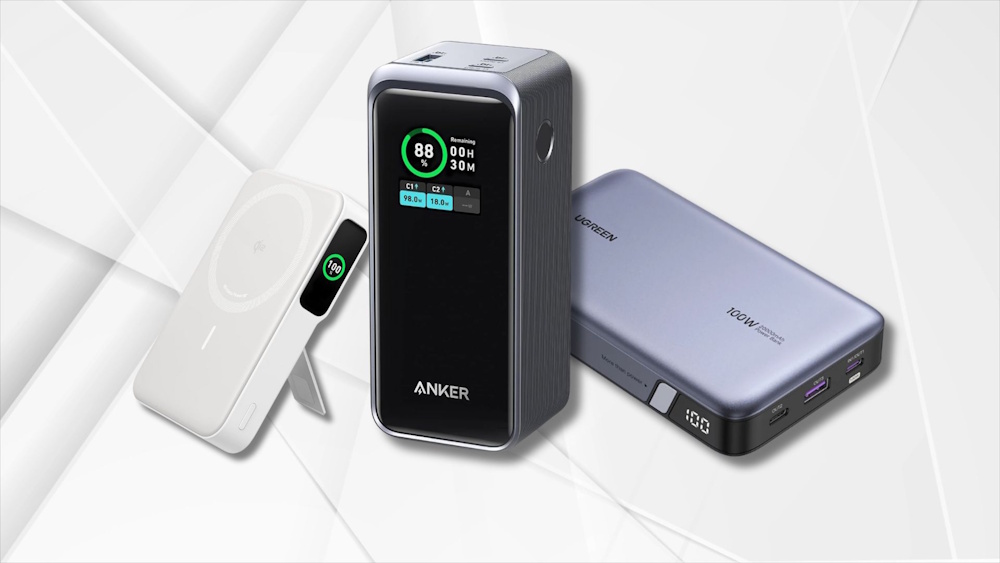

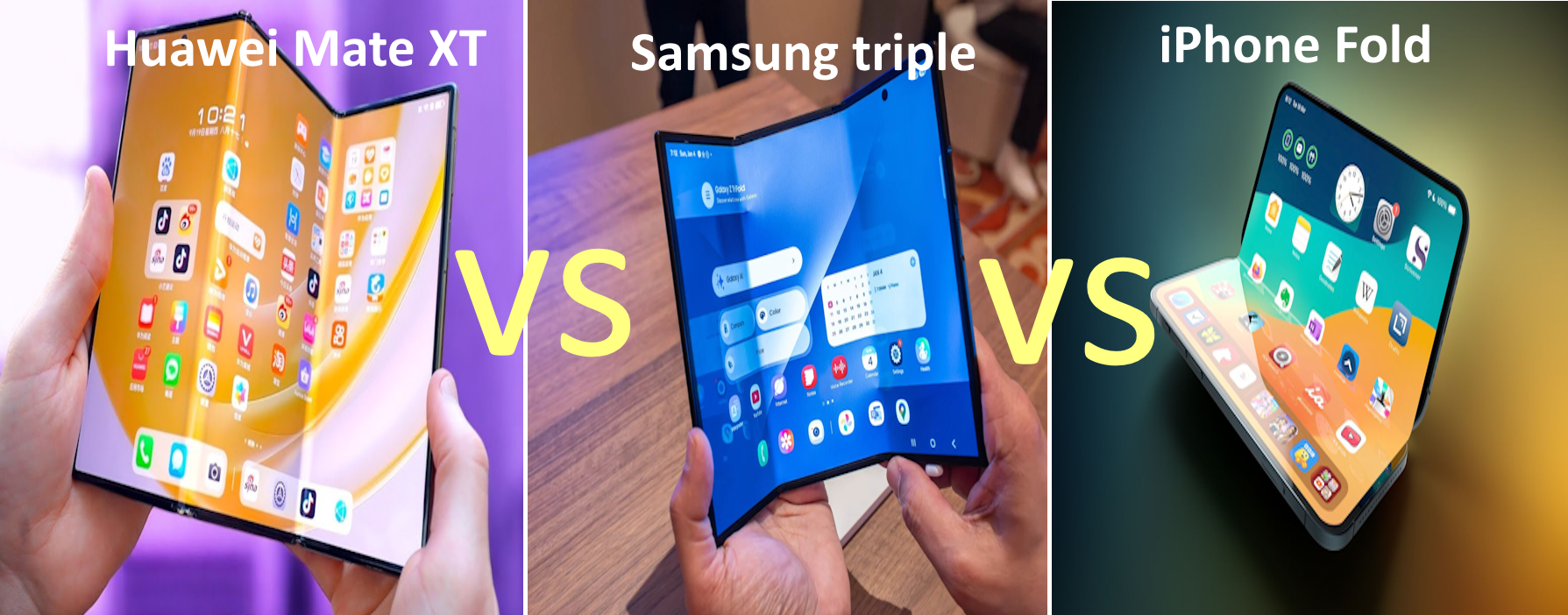
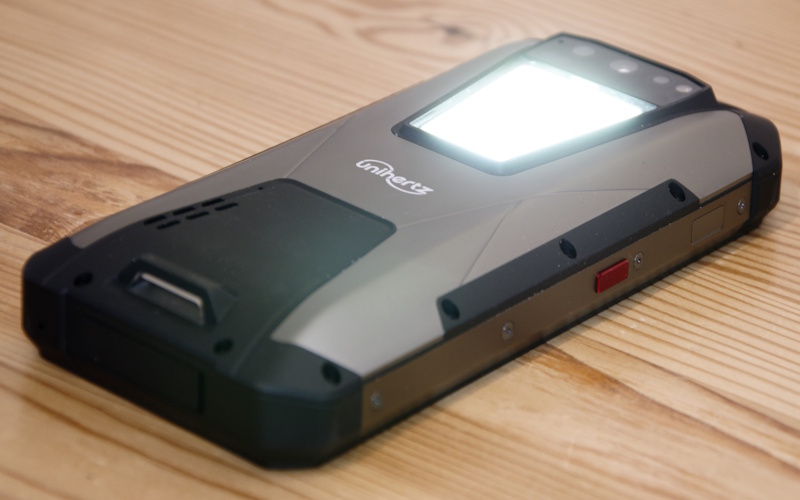

Tags
📧 Get More Articles Like This
Subscribe to receive product reviews and buying guides in your inbox!
We respect your privacy. Unsubscribe at any time.